Keep your message moving
Combine images and videos in a playlist. Let a video play to the end or choose a fixed duration for each item.
Images & video TulipCastSTUDIO
DIGITAL SCREEN COMMUNICATION. ON YOUR NETWORK.
From a welcome at reception to news on the shop floor. Create, manage and share your content from one clear dashboard.
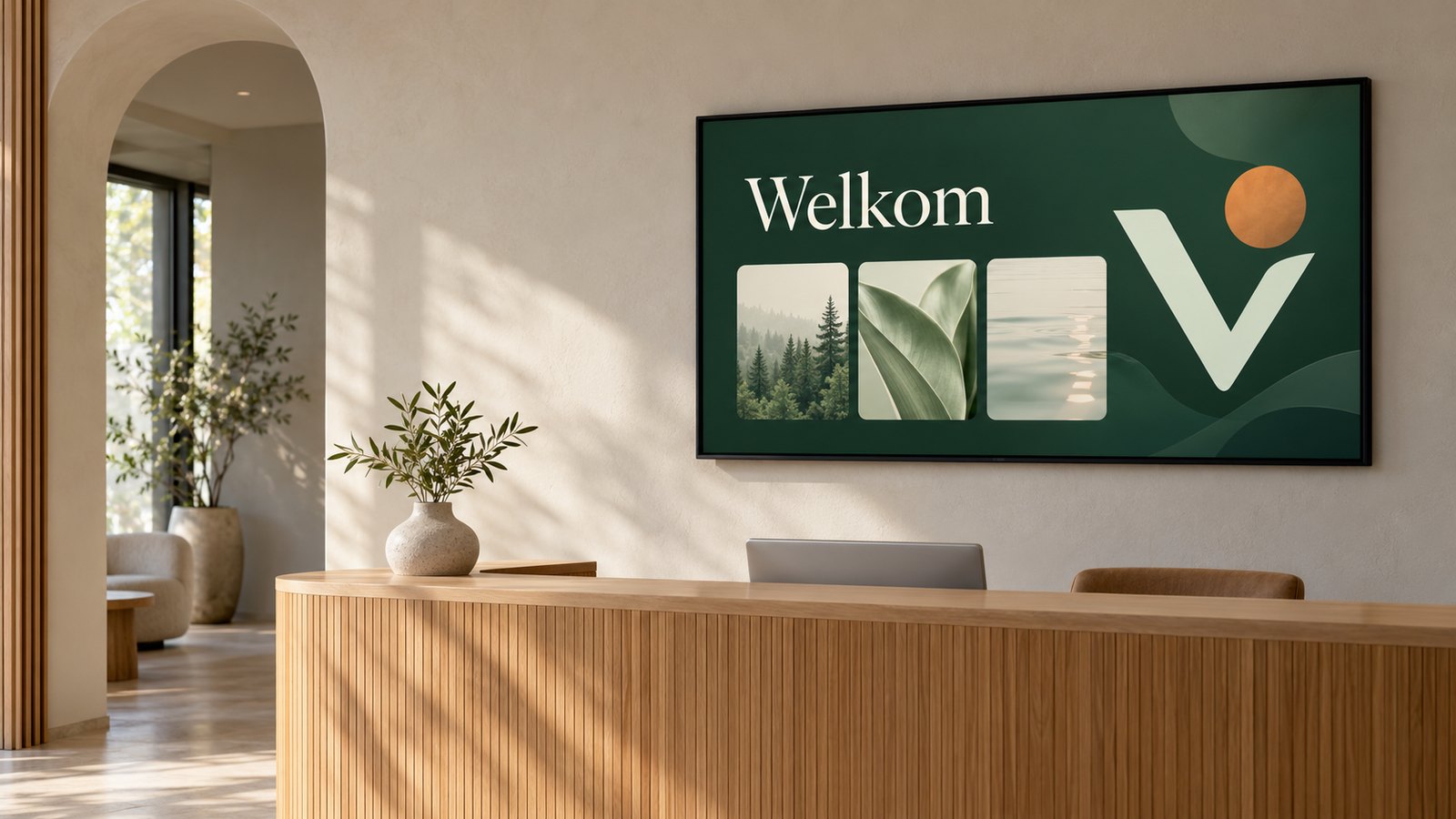 ILLUSTRATIVE SCENE · RECEPTION
Your network. Your content.
One central workspace for every screen↗MORE THAN A PLAYLIST
One image or a complete information page. One screen or a group. TulipCast brings creating and playing together.
Combine images and videos in a playlist. Let a video play to the end or choose a fixed duration for each item.
Images & videoPlace text, images, videos, information blocks, a clock and a ticker on your canvas. Drag everything into place.
Visual content builderGive several screens the same group playlist. A dedicated group colour makes it clear which screens belong together.
Screens & groupsSchedule content for days and times, or link a playlist to a screen or group with a start and end date. When the scheduled period ends, the previous content returns.
Schedule content & playlist linksThe Windows player launcher and Android app store received content locally. Fully saved media can also start when the server is temporarily unavailable. External websites still need a connection.
Local offline storageBack up screen links, groups, pages and uploads. See which screens are connected and what they are playing.
Backups & screen monitoringSave playlists without choosing a screen straight away. Assign the same list to a screen or group later and schedule when the link becomes active.
Standalone playlistsUpload several files at once, organise them in folders and search by name. Choose images or videos from the right folder directly in the builder.
Folders & searchThe Management Console lets you start, stop and manage the service. Give colleagues their own administrator or content editor accounts.
Windows service & permissionsINDEPENDENT ON YOUR NETWORK
Create content, adjust your playlist and publish within your own network. Local management does not require an internet connection.
Studio runs on your Windows server computer. Open the dashboard from a laptop on the same network, create pages and manage your screens. The server must be running to deliver changes.
Your uploads and settings are stored on your server. Local management does not require a hosted TulipCast service. You are responsible for updates and backups; Studio provides the tools.
The Android app and Windows player launcher can keep playing fully saved media when the server is temporarily unavailable. This does not apply to external websites or live sources.
TulipCast works locally and has no cloud portal. External websites, external content and downloading software may still need internet access. A regular browser player has different storage and restart limits from the Android app and Windows player launcher.
YOUR CONTROL ROOM
TulipCast Studio runs on your server computer. Open the dashboard in a laptop browser on the same network and manage your screens from there.
Studio 3.0.2 · sample data · click to enlarge ↗
ONE SCREEN. SO MANY POSSIBILITIES.
A few ideas to get you started. The screen content and situations shown are examples.
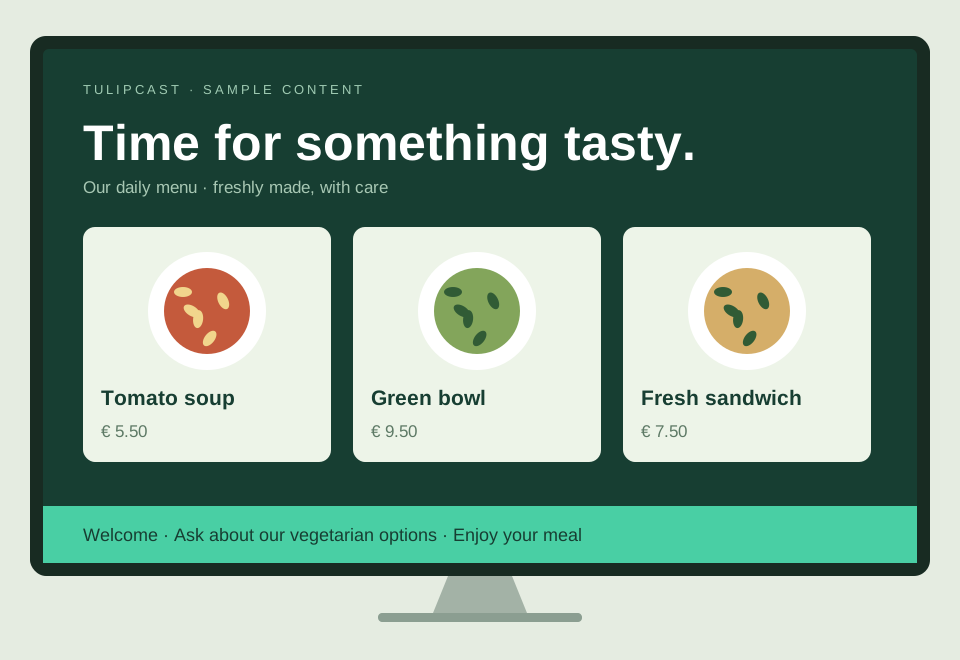
01 / WELCOMEWelcome visitors, show them the way and share practical information. A clock and ticker keep the page lively.
 02 / FOOD & DRINK
Present the daily menu with pictures and prices. Update one page and use it on every screen in your business.
 03 / WORKPLACE
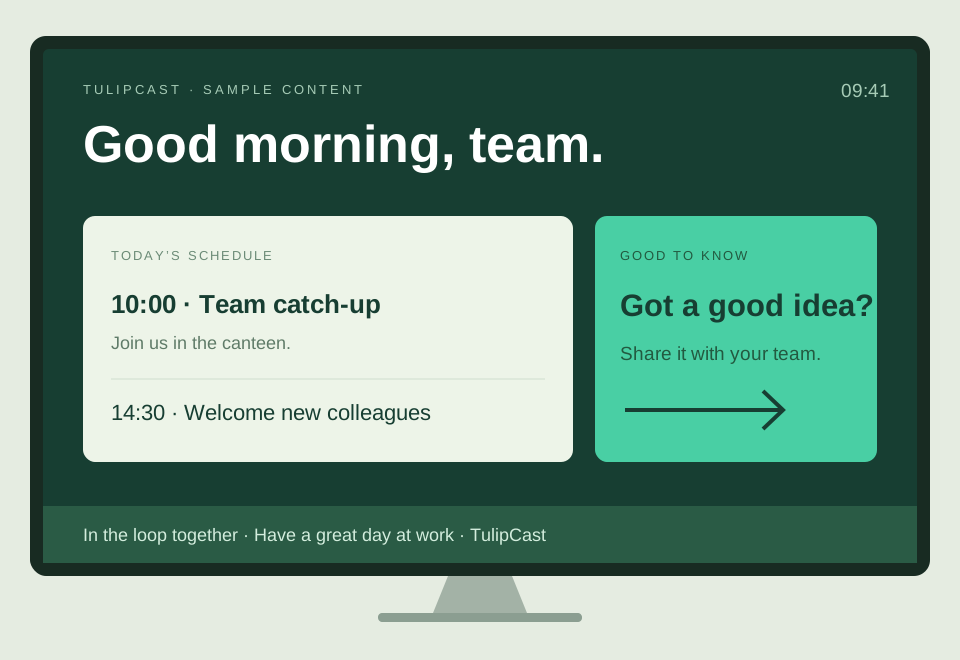
Show team news, announcements and videos in the workplace. Schedule different messages for different moments.
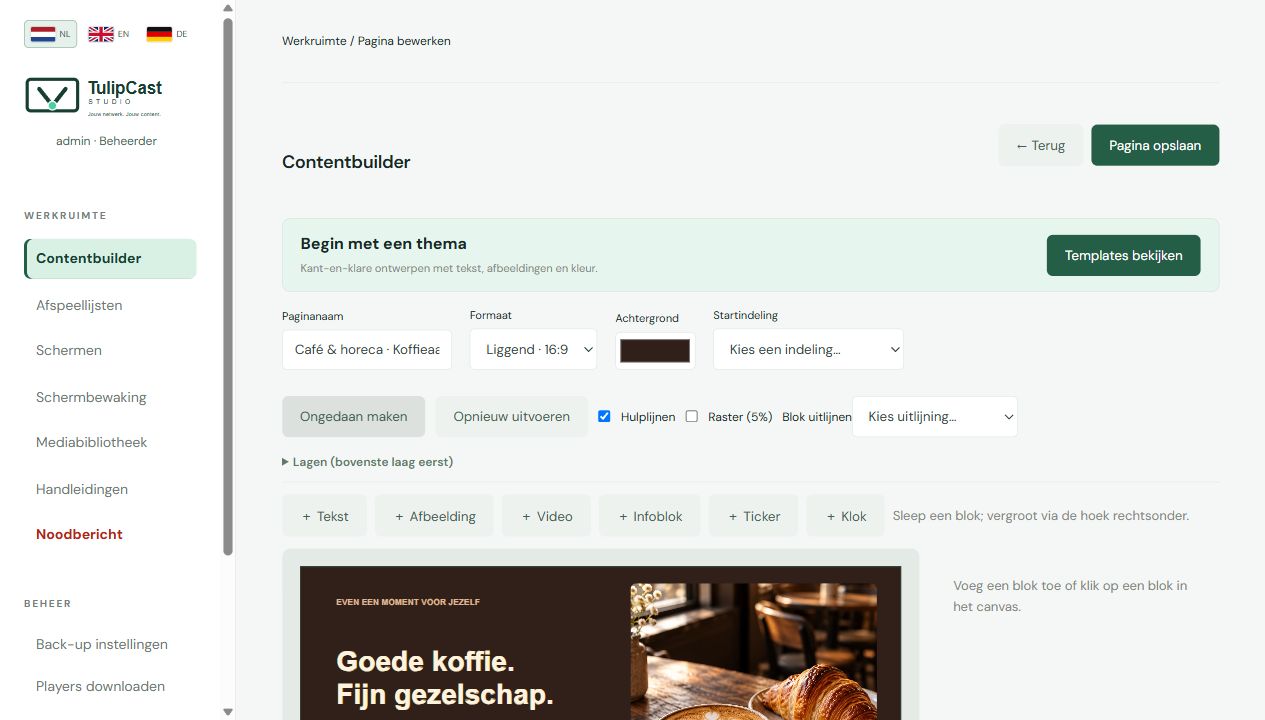
FROM IDEA TO SCREEN PAGE
Start with one of 100 standalone templates or choose one of 22 three-page sets. Pick from 25 fonts, use bold and italic, add images and video, and adjust colours, transparency and blur. Information blocks have separate title and body sizes; set your own ticker separator and speed.
Create your first example below ↓A HEAD START FOR YOUR DESIGN
100 standalone starter templates, plus 22 themed sets of three pages each. From florists, hospitality and computer services to Christmas, Easter and workplace information. Search by subject and filter by theme and format.
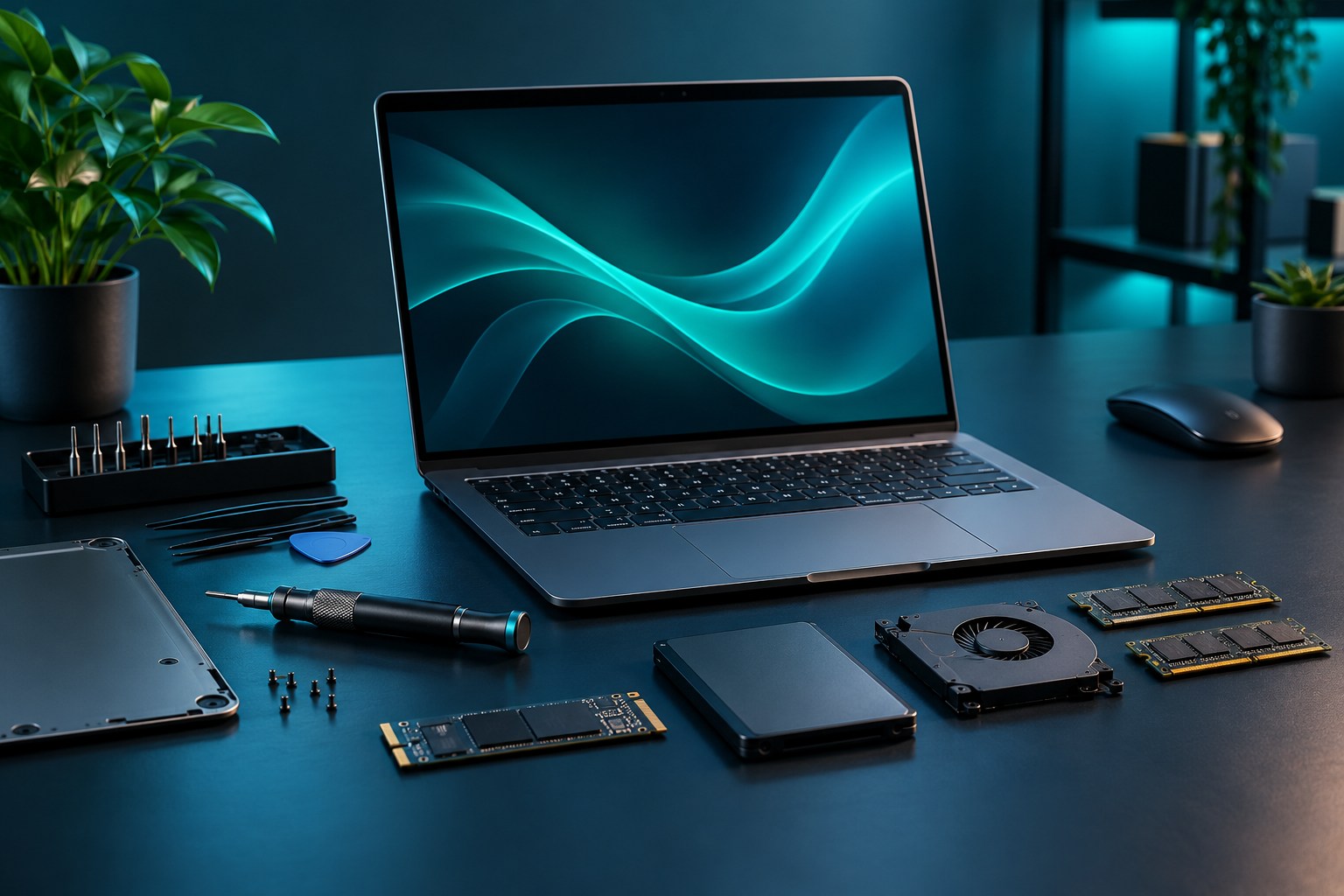
Show your services, opening hours and a clear message.

Create your own festive page with text, images and colour.

Adapt the example for your shop, reception area or canteen.
Search by subject, filter by theme and choose landscape or portrait. Click to enlarge ↗
Examples from the included templates. Layout and text can be edited in Studio. Starter content is organised in 11 folders: Brasserie, Business - Modern, Kerst, Pasen, Nature, Overige content, Relaxed, Sales, Seasons, Sinterklaas and Tech.
EVERYDAY MANAGEMENT, TAKEN CARE OF
Your content deserves attention. Managing it should stay simple. These features are available in TulipCast today.
Use standalone templates or a set of three different pages. Make text bold, italic or both. Combine photos, video, a ticker and information with your own colours and transparency.
Set landscape, portrait, rotation and mirroring per screen from Studio. The Android app automatically follows the content format: landscape for wide content and portrait with 90° rotation for tall content. Mount portrait monitors with the top edge pointing left. Rotation can still be adjusted manually. An updated player receives settings when connected; the delivery status shows whether they were applied.
Create a full backup, restore a file and manage automatic local backups on one page. User roles, screen monitoring and guides keep everyday management clear.
Schedule daily, on selected weekdays or once. Change the times and targets of an existing assignment. An emergency message only needs a title; extra message text is optional.
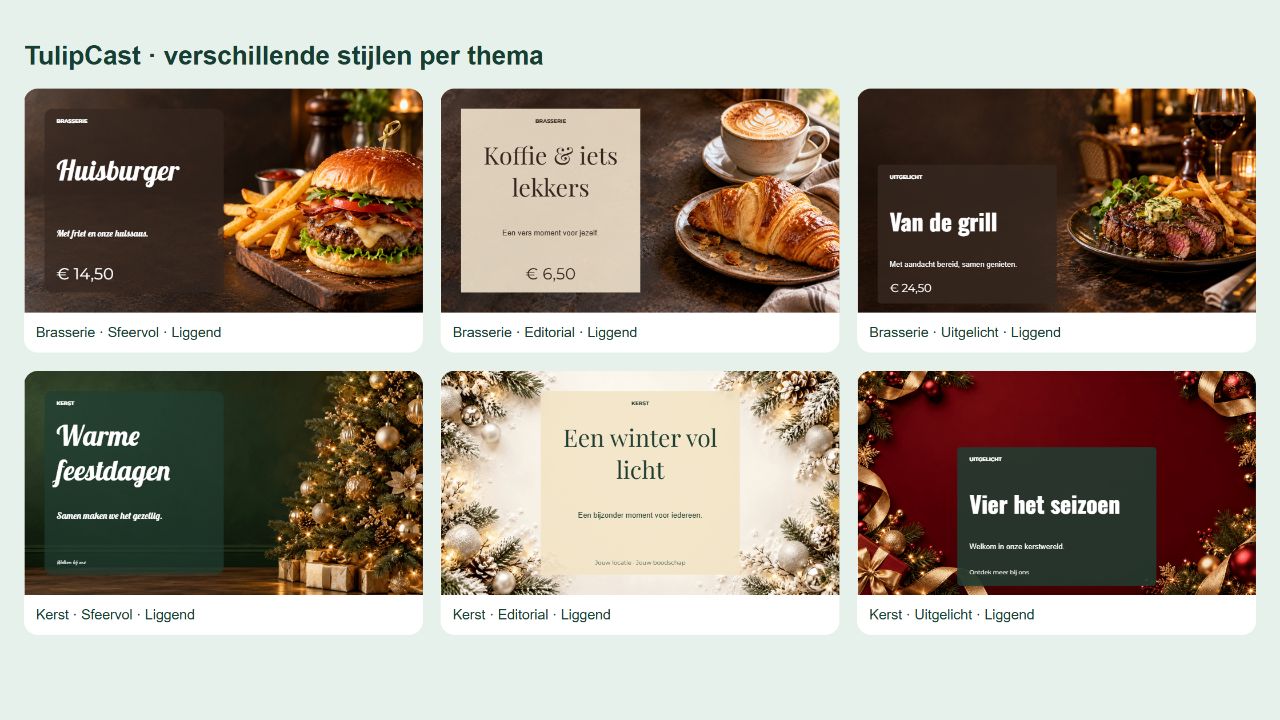
Sample designs from the editable template sets. Text and prices are examples.
Download the product brochure (PDF) ↓TRY IT YOURSELF
Change your sample content and publish. Watch all three screens change together.
A GREAT DAY STARTS HERE
Screen 002 · Entrance
Screen 003 · Waiting area
Interactive simulation. This demo runs only in your browser and does not control real screens. Your input is not sent to a TulipCast server. In the actual app, connected players automatically retrieve updates.
FROM SETUP TO SCREEN
One central server, a browser for management and a Player on your display device. That is the basic setup.
Install Node.js 22 or later on your Windows server computer. Extract TulipCast and open Start-TulipCast.cmd. Open the displayed address in your browser and sign in with the admin code from the Management Console. The console can stay in the system tray; the optional Windows service keeps the server running without a signed-in user.
On your own server computerDownload the Windows player launcher from Studio or install the Android app. Start the Player on the same network. It registers; you approve the screen in the dashboard.
Register & approve onceUpload images or videos, create a page and build your playlist. Choose one screen or a group and publish. Connected players automatically receive your updates.
Create, schedule, publishThe pairing screen shows the server computer and dashboard address, including the port and an alternative IP address. Open that address on a laptop on the same network.
SCREEN FORMAT & PLAYBACK DEVICE
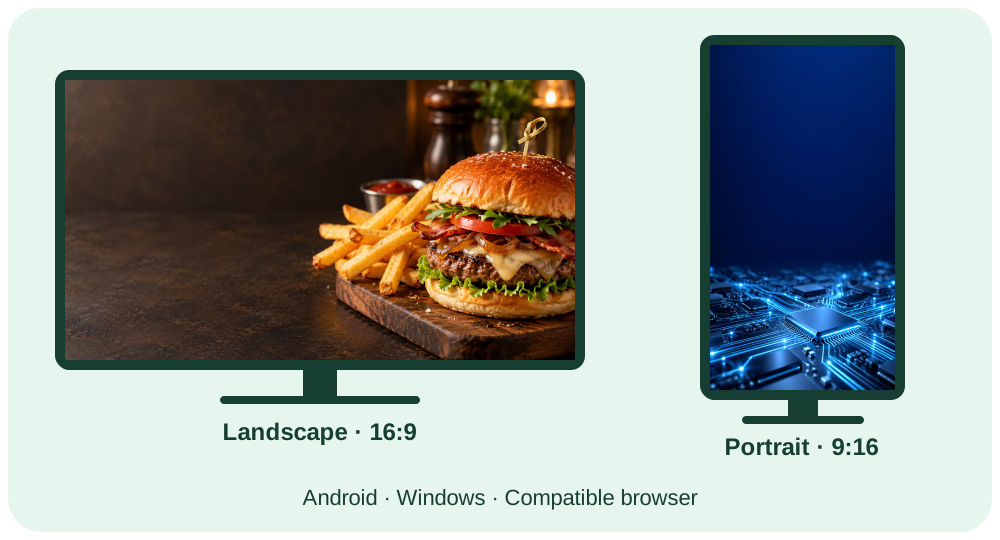
Both screen formats work with TulipCast Player for Android and Windows, or through a suitable browser. The screen format does not determine which playback device you use.
STUDIO & PLAYER
The player launcher opens Edge in kiosk mode, remembers the pairing and stores media locally. Use Windows Startup to launch it after signing in.
A dedicated TulipCast Player app with saved pairing and server discovery. Autostart depends on device settings and firmware. Android 4.4 (API 19) is the installation minimum. A compatible WebView is required for correct display. Older devices have not been practically tested; check each device and its firmware.
An Android box can also drive a Samsung TV over HDMI. A kiosk browser can open the web player. There is no native Samsung Tizen app; browser and codec support vary by device.
TULIPCAST FOR YOUR ORGANISATION
A reception screen, a shop full of displays or a local installation at each branch. Map out your screens, content and preferred setup.
For a reception area, shop or small workplace with a manageable number of screens.
For multiple screens at one location, with shared content, groups and scheduled playlists.
Each branch uses its own local Studio. Manage content and screens in that location’s installation.
A setup that fits. These examples help you define your needs. Multiple branches use a separate local installation at each location; there is no central management of multiple branches from one Studio.
MAKE YOUR REQUEST SPECIFIC
Enter your setup and save a summary for a discussion or quote request. This also works offline.
Your details stay on this browser page. Nothing is sent or saved automatically. The summary is not an order and does not include a price.
READY FOR YOUR FIRST SCREEN?
Discover which setup suits your location. TulipCast runs on your own Windows server computer. You provide the local network and display devices.
The complete system for your Windows server, including dashboard and player software.
Build your requirements ↗A new TulipCast installation?
Extract the complete system into a new folder and start Start-TulipCast.cmd. Install TulipCast Player as a new app and approve your screens in Studio.
GOOD TO KNOW
Practical answers before you get started.
The server and players can work together on a local network. Internet may be needed for installation, external websites or content from external links. The dedicated Windows and Android players can keep playing fully saved uploads offline; websites are unavailable offline.
Export your presentation as an MP4 video or individual PNG images and add those. Direct PPTX playback is not available. No Office package is needed on the TulipCast server or players.
You can add a website URL to a playlist. The website must allow iframe embedding. Websites that block embedding or require an interactive sign-in may not work as screen content.
Use a group for screens sharing the same playlist. You can also use the same builder page on several screens or groups. A change to the saved page is applied everywhere.
Decide how many screens each location needs and what content to show. Use groups or shared playlists for identical content. The request helper creates a local summary of your requirements for you to save or share. This website does not process orders or payments.
The optional Windows service can start the server before sign-in. The Windows player launcher can run after sign-in through Windows Startup. Android autostart depends on the box and firmware; configure it once on the device and test a restart.
Not every built-in TV browser is suitable. A Windows or Android player over HDMI gives you more control. There is no native Tizen app. Test the video formats and browser on your display device.
Studio is normally managed in a browser on the same local network. TulipCast has no cloud portal for remote management. Your own VPN can provide access to the local network; configure that separately from TulipCast. Do not expose the standard HTTP server port directly to the internet.
Keep your server data and local player pairings. Use the updater and make a backup in Studio first. Do not clear Android app data or Windows device codes. This helps existing screens stay connected.
Your network. Your content.